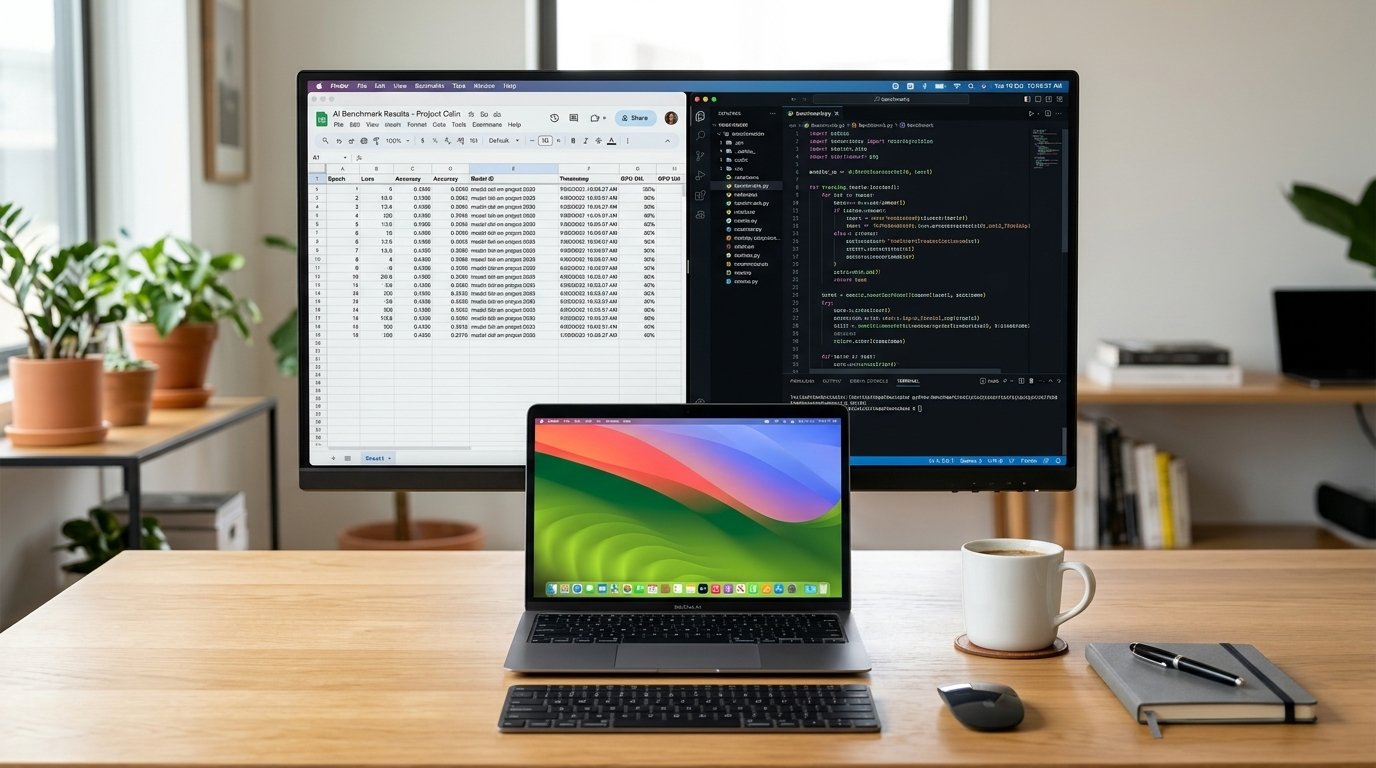
Getting an email offering $40+ an hour to work on an AI project called Project Odin sounds like an immediate win. Then you click through the onboarding documents, discover a 40-page technical manual, realize your job title is "Writer" even though you are asked to demonstrate complex domain workflows, and watch your first submission get rejected because your desktop clock was not showing seconds.
That is the reality of Project Odin on Mercor.
Project Odin is associated with Mercor's AI research work, but it is not simply another opportunity to answer questions online. The work described in public listings involves performing real computer-based workflows and recording them so researchers can study how people complete tasks. The process can be more demanding than its job title initially suggests.
Because the data trains autonomous computer-agent models, the standards are punishingly strict. A single overlapping application window, a visible personal email, or an unapproved background app can invalidate an entire 30-minute recording.
This guide explains what Project Odin involves, who may be eligible, how to approach onboarding, how to prepare a task recording, what can cause avoidable rework, and what to check before relying on the income. It also examines questions raised by current and prospective contributors, rather than treating every advertised benefit as a guarantee.
If you are looking for a general introduction first, read ExpertWoka's companion guide, Mercor Project Odin: What It Is, How It Works, and What Applicants Should Know. This article focuses on the practical decisions you face once you start considering an offer.
What Is Mercor Project Odin?
Project Odin is an AI research project associated with Mercor, a platform that connects professionals with AI training and evaluation opportunities.
Unlike conventional data annotation, where workers might label images, categorise text or transcribe recordings, the Odin workflow described in available project information centres on completing practical tasks on a computer and recording the process.
Depending on the role and its instructions, a contributor might demonstrate a software workflow, organise information, perform a technical procedure or complete another task that reflects genuine computer use. The exact task depends on the assignment you receive; not every contributor should expect to perform the same kind of work.
The broader purpose is to provide researchers with examples of how people carry out tasks in real software environments. A recording can show not only the final result but also the steps taken to reach it.
For example, imagine a designer who regularly uses Canva to prepare marketing materials. Rather than simply uploading a finished design, the contributor may be asked to demonstrate an approved workflow from beginning to end, narrating the relevant decisions as they work.
The model evaluates your mouse movements, application transitions, keyboard commands, and problem-solving steps. Your actual task, permitted applications and recording requirements must come from your project instructions.
Why are the recordings important?
A completed file rarely tells the whole story of a computer-based task. A screen recording can provide additional information about the sequence of actions, the tools used and the decisions made along the way.
For AI research, that distinction matters. A system that produces a plausible final answer may still struggle to reproduce the steps a competent human takes to achieve the same result.
What contributors can control is the quality of the work they submit: follow the assigned instructions, demonstrate the process clearly and protect information that should not appear in a recording.
Mercor Project Odin Requirements: What You Should Check Before Starting
The most important requirement is not whether you are familiar with AI. It is whether you can meet the technical and procedural requirements of the particular contract offered to you.
Mercor's official expert page describes AI project opportunities that draw on different professional backgrounds. Project-specific eligibility can be narrower, however, so general eligibility for Mercor does not automatically mean eligibility for Odin.
1. A compatible Mac
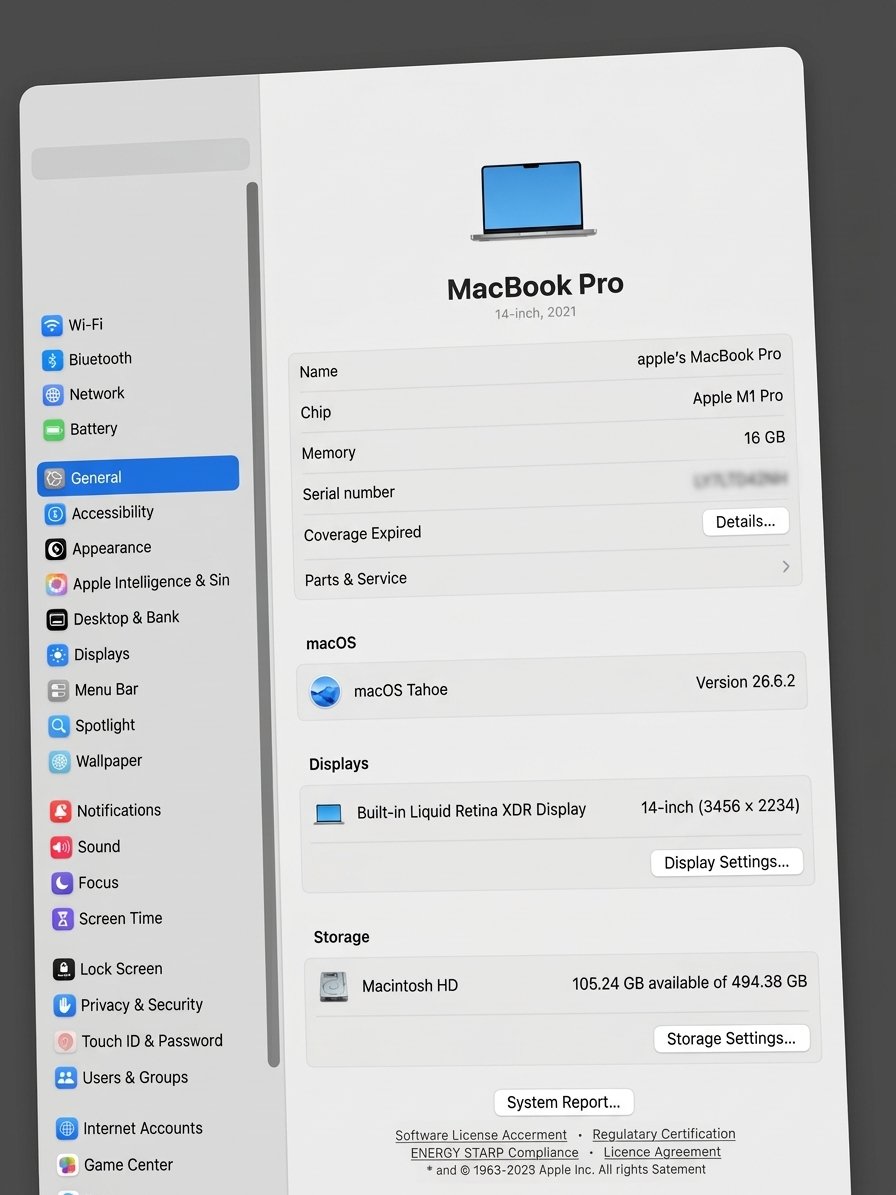
Public descriptions of Project Odin have specified a Mac computer, with some listings requiring an Apple Silicon model such as an M1, M2, M3 or M4 Mac. The exact hardware requirement should be checked against your offer and setup documentation.
Do not assume that owning a Windows laptop, an iPad or a Mac with an older Intel processor will be sufficient. Nor should you assume that a particular model is acceptable simply because it runs macOS.
Practical advice: If you do not already own compatible equipment, do not buy a Mac solely because you received an invitation. First confirm that the offer is genuine, the hardware is eligible, the contract remains active and the expected compensation justifies the expense. A project can change or end before you recover the cost.
2. Reliable internet and suitable recording conditions
You need an internet connection that can support the required applications and upload recordings successfully. You should also have enough storage, a stable working environment and sufficient time to complete the assignment without rushing.
Recording a long task only to discover that the file did not save correctly is an expensive mistake in terms of time.
3. The ability to follow detailed instructions
This work can demand more precision than ordinary computer use. A workflow that is perfectly acceptable in your normal job may not satisfy a recording rubric.
For instance, you might usually switch between several applications without thinking about it. If the task instructions restrict application use, require a particular sequence or prohibit overlapping windows, you must follow those requirements instead of relying on your usual habits.
4. A suitable professional workflow
The work is likely to be easier if you already perform meaningful tasks on a computer. Relevant backgrounds may include design, software development, research, data analysis, office administration, marketing or other knowledge-work activities, depending on the role.
However, do not assume that any one of these backgrounds guarantees acceptance. Your assignment may specify a narrower task category, and your proposed workflow must fit its requirements.
5. Privacy and account configuration
This is an area where contributors should be especially careful.
In the Mercor Project Odin, participants are instructed to use an expert email for online activities and application registrations. Never sign into an app using a personal @gmail.com account. You have to create a new computer user profile because personal details must not appear in recordings.
But, it is important for you to verify the approved email, account configuration and privacy rules through the official project channel before proceeding.
Never expose passwords, verification codes, private messages, client files, personal email addresses or confidential business information in a task recording.
6. Software and Tooling Requirements
Applicants may be required to install and configure the following tools before starting work on Mercor Project Odin:
TaskRecorder 2.4.4: Mercor’s designated screen-recording application, provided as a
.dmginstaller through the project dashboard. Ensure you use the required version, as outdated versions may cause submission issues.Insightful: A background time-tracking utility used to monitor setup time and active project hours, according to the project instructions.
Okta Verify: A multi-factor authentication (MFA) application required for secure access to Mercor Studio.
Important: Confirm the required software versions and installation instructions in your current Mercor dashboard before starting, as project requirements may change.
How to Get Started With Mercor Project Odin
If you have received an offer, resist the temptation to install everything and begin recording immediately. A more deliberate approach can save hours of unnecessary work.
Step 1: Verify the offer and read the contract
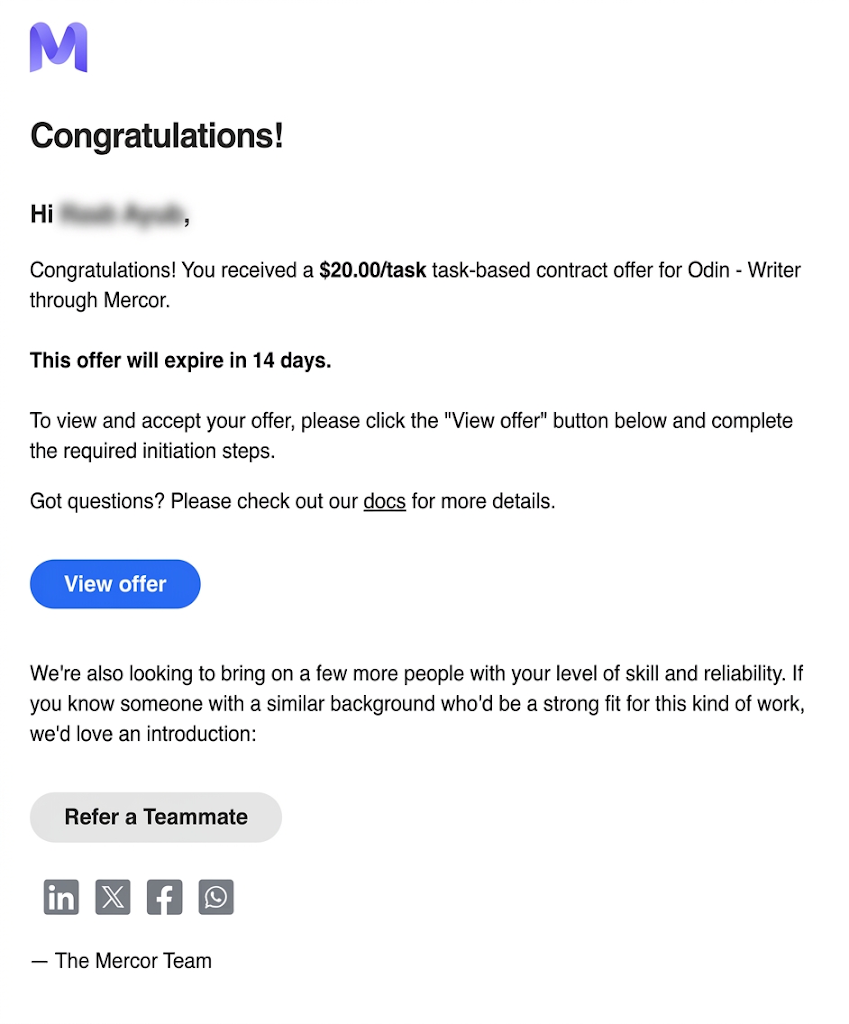
Start with your Mercor account and the project communication associated with the offer. Check the role title, contract status, payment terms, equipment requirements, expected availability and any conditions that apply before paid work begins.
Mercor's official expert portal is a useful starting point for understanding the platform, but the terms displayed in your own offer should govern your assignment.
Pay particular attention to these questions:
Is the role hourly or paid per approved task?
Is onboarding paid? If so, which activities and time limits qualify?
Does payment depend on approval of the recording?
What happens when a submission requires revision?
Are there limits on weekly hours or task submissions?
What happens if the project is paused or your offer is withdrawn?
Do not infer the answers from a discussion thread or another worker's contract.
Step 2: Complete the required onboarding
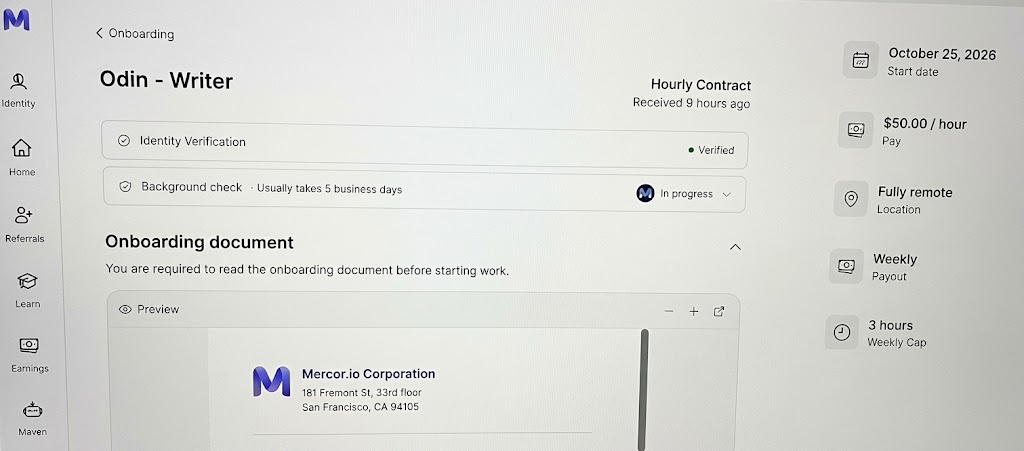
Follow the instructions provided through the authorised project workflow. This may include verification, account setup, software installation, training materials and task-proposal activities.
Follow the version visible in your own dashboard rather than an old tutorial or screenshot.
If you cannot locate a submission form, receive an error or fail to receive an authentication code, contact authorised support before repeatedly attempting the same action.
Step 3: Install the approved tools
Install only the applications and recording tools specified in your project documentation.
Download software from the official source specified by the project. Do not bypass operating-system security warnings or install an application from an unverified link merely because another contributor recommends it.
Step 4: Choose a task that reflects your real work
A sensible starting point is a workflow you already understand and can perform confidently.
It is much better to base task ideas on your actual day-to-day activities and the software you regularly use.
This is practical advice because familiar work reduces the number of decisions you must make while learning the recording process.
A useful task idea should have:
A clear objective.
A beginning and a defined completion point.
A meaningful sequence of actions.
An output or result that can be checked.
A workflow that follows the permitted-tool rules.
No unnecessary exposure of private or confidential information.
Avoid proposing a task merely because it sounds impressive. A simple, well-defined workflow that satisfies the rubric is usually a safer starting point than a complicated demonstration with many opportunities for error.
Step 5: Submit the task proposal for review
Write a specific description of what you intend to do. Explain the objective, the principal steps and the expected result. If the submission form requests separate task breakdowns, provide a distinct breakdown for each task rather than combining several unrelated activities into one proposal.
Wait for the required approval before recording if your workflow requires it.
How to Complete a Project Odin Task Recording
This is where preparation matters most. A contributor can understand the task perfectly and still produce a submission that needs to be redone because the recording does not meet the required format.
The following workflow is a practical preparation checklist, not a replacement for the official recorder instructions.
- Before you press Record
1. Read the complete task instructions. Identify the required result, permitted applications, recording length, narration expectations, file requirements and any prohibited actions.
2. Prepare a clean working environment. Use the required computer profile and approved accounts. Close unrelated windows and notifications. Make sure personal names, email addresses, client details and other sensitive information cannot appear on screen.
3. Prepare the task materials. Open only what you need and make sure the files or sample data are appropriate for the assignment. Never use confidential employer or client data unless you have explicit authorisation and the project rules permit it.
4. Test the recording setup. Confirm that the correct screen is captured, the necessary audio is working and the recorder does not obscure the application. If a test recording is permitted, review it before beginning the actual submission.
- During the recording
Work through the task in a logical sequence. Keep your actions visible and explain relevant decisions if narration is required.
For example, instead of saying, "I'm clicking here, then here," explain the purpose of an important action: "I'm sorting the records by date so I can check the most recent entries first."
The objective is not to narrate every mouse movement. It is to make the workflow understandable without adding unnecessary commentary.
Avoid switching between unrelated applications, opening personal notifications or leaving long periods in which nothing relevant happens. If the instructions require a particular application sequence, follow it exactly.
Do not invent actions simply to make a recording longer. Do not omit necessary steps to finish more quickly. The assignment's stated requirements take priority over a personal preference for speed.
- After the recording
Before submission, check the file against the task requirements.
Does the video show the complete workflow?
Is the required result visible?
Is the narration clear, if narration is required?
Are all required applications and steps captured?
Are there any overlapping windows or obscured actions?
Does any personal or confidential information appear?
Is the recording saved in the required format and location?
Does the submission form contain the requested information?
Reviewing a recording before uploading it cannot guarantee approval, but it gives you a chance to catch preventable problems.
Step-by-Step Workflow of the Task Recording
Once your environment matches the technical rubric, how do you actually complete tasks on Mercor Project Odin?
The workflow runs through five sequential phases:
Step 1: Brainstorming Your Task in Slack (ideation)
You do not guess what to record. You coordinate your proposal inside the project's dedicated Slack workspace.
Navigate to the #odin--ideation channel.
Tag the project AI bot, @Maven.
State your professional background, the specific software you plan to use, and your core workflow idea.
Real-World Example:
A medical lab scientist prompts Maven:
"@Maven I am a radiographer who comments on abdominal and pelvic test results. In my day-to-day workflow, I use Google Sheets to log observations and Microsoft Word to compile reports. Help me ideate a task."Maven's Output:
Maven returns a structured outline:
Deliverable: A one-page analytical commentary comparing synthetic pelvic scan readings against a tabular findings sheet.
Allowed Applications: Google Sheets and Microsoft Word.
Data Warning: Must use 100% synthetic/fictional patient data. Never touch real medical records.
Target Length: 25 minutes of workflow navigation plus a 3-minute wrap-up epilogue.
Review the bot's suggestion, refine the constraints, and copy your finalized proposal.
Step 2: Pitching Your Idea in Mercor Studio
Next, log in to Mercor Studio (studio.mercor.com) using your Okta credentials.
Select the Odin world from your dashboard dropdown.
Click + Create Task.
Fill out the single-form submission format (Mercor recently deprecated the cumbersome multi-step form in favor of an all-in-one view).
Enter your deliverable description, the specific verification methods you will use to prove your work is correct, and the software tools involved.
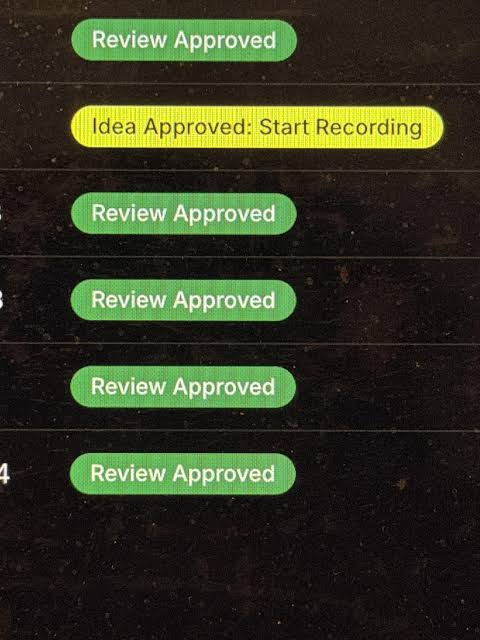
Submit the draft. The status will display as Idea Draft. You cannot start recording until an auditor or manager flips this badge to Idea Approved: Start Recording.
Step 3: Preparing Synthetic Data Before Hitting Record
Never construct test spreadsheets, write raw scripts, or gather synthetic source materials on the clock while recording unless that setup is explicitly part of the task prompt.
Assemble your source data beforehand:
Build clean, synthetic data sets that mimic genuine professional scenarios.
Confirm that zero proprietary client data or real patient names appear in any row.
Stage your application windows cleanly on your primary display.
Step 4: Executing the Screen Recording
Download and launch TaskRecorder 2.4.4.
Window Management: Ensure windows do not overlap erratically. If you are comparing a spreadsheet on the left with a document on the right, tile them cleanly edge-to-edge. Reviewers reject submissions where background apps peek out or windows obscure critical menu interactions.
Audio and Verbal Narration: Speak continuously and deliberately. Explain why you are making specific decisions (e.g., "I'm adjusting the cell range here to account for missing baseline samples, then verifying this formula with an IF statement"), rather than just narrating button clicks.
Stick to Approved Applications: Limit yourself strictly to the 2–3 applications approved in your Studio proposal. Launching an unvetted third-party utility from your dock—even briefly—can cause the file to be flagged.
The Wrap-Up Epilogue: Dedicate the final 3–4 minutes of your video to reviewing your finished deliverable. Open your completed file, check the figures against your source materials, and state clearly how the end result solves the initial prompt.
Step 5: Upload and Post-Submission Audit
Stop the recording, verify that the output video file opens properly (corrupted .mp4 or .mov containers cannot be salvaged), and upload the recording to your approved Studio task card. Submit the task for review.
Why Project Odin Recordings May Need Revision
A returned submission does not necessarily mean the contributor lacks the relevant skill. The issue may be the task itself, an incomplete step, a technical defect or a mismatch with the evaluation criteria.
Public discussions on Reddit's Mercor worker community include reports of repeated recordings, detailed feedback and frustration with onboarding. Other contributors describe progressing after they understood the review process. These are individual accounts, not verified rejection statistics or a complete picture of every worker's experience.
Common issues to investigate when a submission is returned include:
- Incomplete execution: A required step or final result is missing.
- Recording defects: Windows overlap, the wrong screen is captured, audio fails or the recording does not save as expected.
- Privacy violations: Personal details, account information or confidential material appear on screen.
- Instruction mismatches: The contributor uses an unapproved application, skips a required sequence or fails to follow the task format.
- Unclear demonstrations: The video does not make it easy for a reviewer to understand what was done or whether the objective was achieved.
When you receive feedback, read it carefully before recording again. Turn each comment into a concrete correction. If the feedback is ambiguous, ask for clarification through the authorised channel rather than guessing.
If you believe the recording meets the requirements, request specific guidance on the failed criterion. Keep the original instructions and feedback so you can compare them with the next submission.
Mercor Project Odin Pay: How Much Can You Make?
Payment is one of the biggest reasons people investigate Project Odin. It is also an area where applicants need to separate a quoted rate from actual earnings.
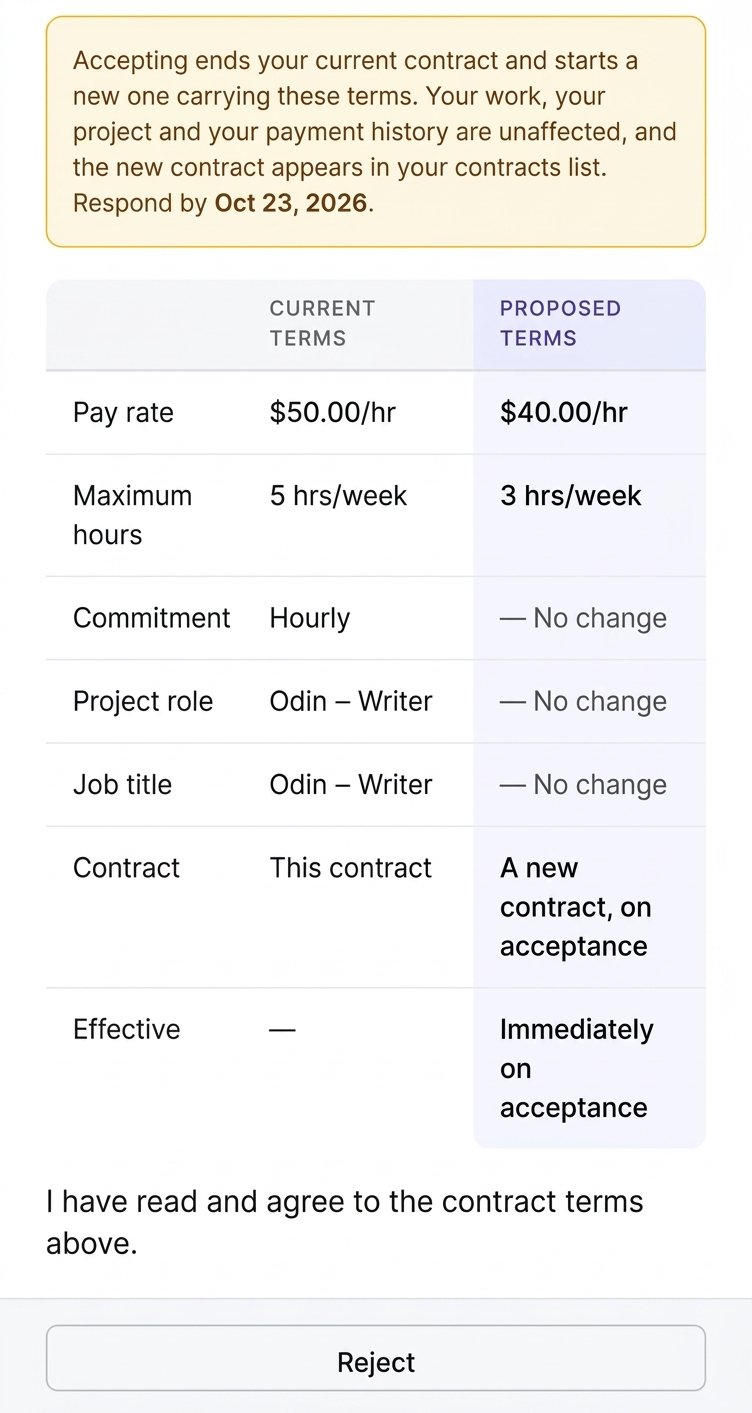
Many sources state that the pay for Mercor Project Odin is $40. However,, public discussions show that contributors have reported different arrangements and changes in how the project operates. For example, a recent discussion about Project Odin compensation raises questions about weekly hour limits, onboarding phases and progression after task approval.
You should therefore rely on the rate and payment rules in your own active contract, not a rate quoted by someone else.
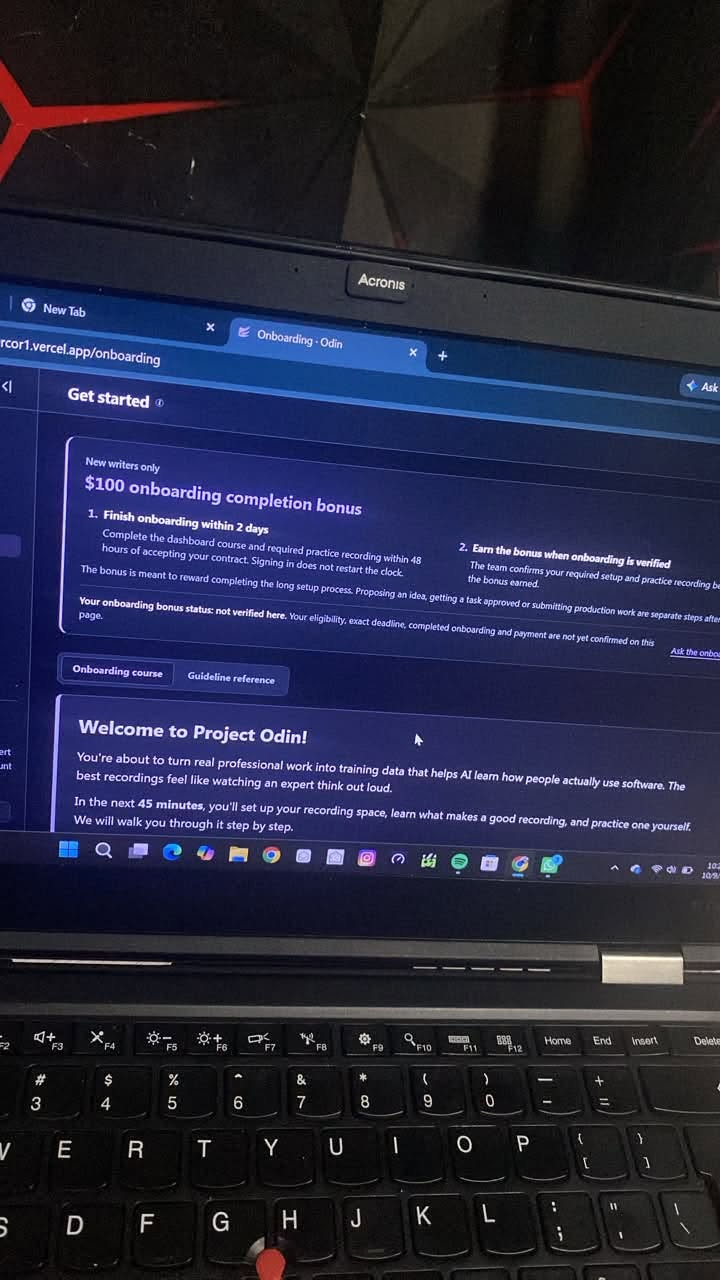
Interestingly, there is an onboarding completion bonus of $100 when you complete your onboarding.
Understand the difference between recording time and working time
Suppose a contract pays according to approved recording duration. The time needed to prepare a task, develop the proposal, configure software, review the video and correct errors may be greater than the recording itself.
Consider a hypothetical example: you spend 90 minutes preparing and recording a task, then another 30 minutes correcting a problem. If only 30 minutes of approved recording time are compensated at a rate of $40 per hour, the payment would be $20 for two hours of actual effort. That is an effective return of $10 per hour before any expenses or taxes.
This is an illustration of the calculation, not a claim about the current terms of every Odin contract.
The point is simple: a high advertised rate does not tell you how much you will earn for the time you actually spend.
Before starting, calculate your likely effective earnings using the payment rules that apply to you. Include setup time, revisions, equipment costs and any other unpaid work.
What if a task is rejected?
Check the contract for its revision and payment rules. A requirement to correct a recording does not, by itself, establish whether the original time or the revised work will be paid.
Do not assume that approval is automatic or that every rejected task is unpaid. Equally, do not assume you will receive payment for every activity simply because you spent time on it.
If the rules are unclear, ask for written clarification before investing substantial time.
Is Mercor Project Odin Worth It for Remote Workers?
The honest answer depends on your equipment, the contract terms, your tolerance for detailed review and the amount of work actually available.
Project Odin may be worth considering if you already have a compatible Mac, regularly perform useful computer-based workflows, can follow precise instructions and understand the payment conditions. Familiarity with the task can reduce preparation time, although it cannot guarantee acceptance.
It may be a poor fit if you would need to purchase expensive equipment, have very limited time for revisions or expect predictable full-time income without a confirmed commitment.
Recent worker discussions illustrate both the appeal and the uncertainty. In one discussion about whether Odin is worth continuing, a contributor described repeated recording attempts and concerns about the workload. Other comments describe continuing after onboarding. Such accounts are useful for identifying questions to ask, but they cannot establish the typical experience or guarantee what will happen to a new contract.
Use this checklist before deciding:
I have verified that my offer is active.
My computer meets the written technical requirements.
I understand whether onboarding and revisions are paid.
I know how compensation is calculated and when it is released.
I understand the privacy and software-access requirements.
I can complete the work without exposing confidential information.
The likely return justifies the time and costs involved.
I can afford the possibility that the project may change or end.
If several answers are uncertain, resolve them before committing substantial time or money.
How to Protect Your Privacy While Working on Project Odin

Screen-recording work deserves a more careful privacy check than an ordinary remote task because the recording may capture far more than the intended activity.
A separate computer user profile can help keep personal information out of the recording, but it is not a complete security solution. You should still inspect what is visible, use only authorised accounts and avoid accessing sensitive material during the demonstration.
Before granting any software permissions, understand what the application can access, why that access is required and whether the permission is described in the official instructions. If a request seems excessive or unclear, pause and ask the project administrator for an explanation.
Never share passwords, authentication codes or private account credentials with another contributor. Do not install unofficial tools or rely on links sent through unverified social accounts.
Also consider your professional obligations. If you work for an employer or serve clients, you may not have permission to record internal systems or proprietary workflows. Use safe sample data or a permitted demonstration environment when appropriate.
Your contract and the project's written security policy should determine what you can record. If they conflict with an employer's confidentiality obligations, do not proceed until you have resolved the issue.
How to Find Legitimate Project Odin Information and Avoid Misleading Claims
Search results for Project Odin can mix official opportunities, third-party job listings, social media discussions, referral messages and personal opinions. Those sources are not equally reliable.
Start with the official Mercor website and your own Mercor account. Confirm the role title, current requirements, payment terms and onboarding steps using the documents attached to your offer.
Then use community discussions as supplementary research. Search the Mercor worker subreddit for recent experiences involving recording requirements, approval delays, revisions and project status. Look for several independent accounts rather than treating one person's experience as proof.
You can also search YouTube, TikTok and X for walkthroughs and discussions. Check when each post was published, whether the creator actually participated and whether the instructions match your current contract.
Be particularly cautious of claims that promise guaranteed acceptance, unlimited hours, effortless income or a fixed project duration. A screenshot of another person's offer does not prove that you will receive the same terms.
The same caution applies to third-party job boards. A listing can help you discover an opportunity, but confirm that it remains active and that the application route is legitimate before sharing personal information.
Frequently Asked Questions About Mercor Project Odin
- Can beginners apply for Mercor Project Odin?
Potentially, if they meet the requirements of the specific role. Prior AI experience is not necessarily the deciding factor in a computer-workflow project, but technical eligibility, task suitability and the ability to follow detailed instructions still matter. Check your actual offer.
- Do I need a MacBook to complete Project Odin tasks?
Public descriptions of the recording role specify compatible Mac hardware, with some listings requiring Apple Silicon. Confirm the exact model and operating-system requirements in your contract. Do not assume that a Windows computer or an unsupported Mac will work.
- How long does the onboarding process take?
There is no verified universal duration. Setup, verification, software installation, task planning and recording requirements can all affect how long it takes. Ask which onboarding activities count as paid work and whether there is a deadline.
- Can I submit several tasks at once?
It is advisable to complete, submit and obtain approval for one task before starting or applying for another. Follow that rule if it appears in your current workflow, and verify any subsequent changes with the project administrator.
- Why might my Project Odin video be rejected?
Possible causes include incomplete steps, technical recording issues, privacy violations or failure to follow the required format. Use the review feedback to identify the specific problem, correct it and check the complete recording before resubmitting.
- Is Project Odin guaranteed to provide ongoing work?
Offers, available tasks, review requirements and project status can change. Do not base essential expenses on income that has not been confirmed.
Final Thoughts: Understand the Contract Before You Start Recording
Mercor Project Odin is best approached as a structured computer-work project with technical, privacy and quality-control requirements—not as effortless money for leaving a recorder running.
Your best preparation is straightforward: verify the contract, confirm the equipment, understand the payment rules, choose a manageable workflow and check every recording against the instructions before submission.
The most important question is not simply how much Project Odin advertises per hour. It is how much approved work you can realistically complete, how much time that work requires and whether the arrangement remains worthwhile after revisions and expenses.
Before you begin, make sure you can answer that question using the terms of your own contract. That is a far stronger starting point than relying on someone else's offer, rate or experience.